Part 2 – Reading Temperature & Humidity with DHT11
In Part 1 we made an LED blink — simple, but it taught us how everything connects. Now we’re going to do something more useful: read real data from the physical world.
The DHT11 is a small sensor that measures both temperature and humidity. It communicates over a single data wire, it’s beginner-friendly, and it’s a natural first sensor for a hydroponics setup where both values matter. We’ll wire it up, install a library, and print live readings to the Serial Monitor.
What You’ll Need
Hardware:
- Arduino Uno (from Part 1)
- AZDelivery KY-015 DHT11 sensor module
- 3x jumper wires (male-to-male)
- Breadboard (optional — the KY-015 module has its own pins)
Software:
- Arduino IDE (from Part 1)
- DHT sensor library by Adafruit (we’ll install this together)
Understanding the KY-015 Module
The KY-015 has three pins:
| Pin | Label | Connect to |
|---|---|---|
| 1 | Signal (S) | Any digital pin on Arduino |
| 2 | VCC (+) | 5V on Arduino |
| 3 | GND (-) | GND on Arduino |
The pin order can vary between modules — check the labels printed on your board before wiring.
How to Wire It Up
This is simpler than the LED circuit in Part 1 — three wires, no resistor needed:
- Connect S (Signal) to pin 2 on the Arduino
- Connect + (VCC) to 5V on the Arduino
- Connect - (GND) to GND on the Arduino
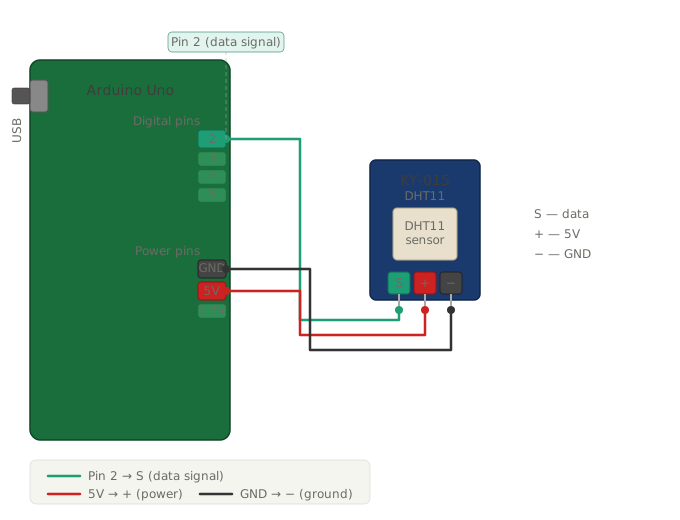
That’s the full circuit. The DHT11 gets power from 5V, sends its data signal on pin 2, and shares a common ground with the Arduino.
Installing the DHT Library
The DHT11 uses its own communication protocol, so we need a library to handle the low-level details for us. We’ll use the well-maintained Adafruit DHT library.
In the Arduino IDE:
- Go to Sketch → Include Library → Manage Libraries
- In the search box, type
DHT sensor library - Find DHT sensor library by Adafruit and click Install
- When asked about dependencies, click Install all — this also installs the Adafruit Unified Sensor library which is required
Once installed, close the Library Manager.
Reading the Sensor
Create a new sketch and paste in the following code:
#include "DHT.h"

// Which pin is the sensor's data wire connected to?
#define DHTPIN 2

// Which sensor type are we using?
#define DHTTYPE DHT11

// Create the sensor object
DHT dht(DHTPIN, DHTTYPE);

void setup() {
  Serial.begin(9600);  // Start serial communication so we can print to the monitor
  dht.begin();         // Initialize the sensor
  Serial.println("DHT11 sensor ready.");
}

void loop() {
  delay(2000);  // DHT11 needs at least 2 seconds between readings

  float humidity    = dht.readHumidity();
  float temperature = dht.readTemperature();  // Celsius by default

  // Check if the reading failed
  if (isnan(humidity) || isnan(temperature)) {
    Serial.println("Failed to read from DHT11 sensor. Check your wiring.");
    return;
  }

  // Print the results
  Serial.print("Humidity:    ");
  Serial.print(humidity);
  Serial.println(" %");

  Serial.print("Temperature: ");
  Serial.print(temperature);
  Serial.println(" °C");

  Serial.println("---");
}
Click Upload. Once it’s done, open the Serial Monitor by going to Tools → Serial Monitor (or press Ctrl+Shift+M / Cmd+Shift+M). Make sure the baud rate in the bottom right is set to 9600.
You should see readings appear every two seconds:
DHT11 sensor ready.
Humidity:    45.00 %
Temperature: 22.00 °C
---
Humidity:    45.00 %
Temperature: 22.00 °C
---
What’s Going On in the Code?
A few things worth understanding:
#include "DHT.h" — this loads the library we installed. Without it, the Arduino doesn’t know what DHT means.
#define DHTPIN 2 — tells the library which pin to listen on. If you wired to a different pin, change this number.
delay(2000) — the DHT11 can only take a reading every 2 seconds. Asking it faster than that returns garbage data. This is a hardware limitation, not a code issue.
isnan() — stands for “is not a number”. If the sensor fails to respond (loose wire, bad connection), the library returns NaN instead of a value. This check catches that and prints a useful error instead of a meaningless number.
dht.readTemperature() returns Celsius by default. If you want Fahrenheit, use dht.readTemperature(true) instead.
Try It Out
Try breathing on the sensor — humidity should jump up within a reading or two. Hold something warm or cold near it and watch the temperature shift. It’s slow to react (DHT11 isn’t the fastest sensor) but it works.
A Note on DHT11 Accuracy
The DHT11 measures temperature to ±2°C accuracy and humidity to ±5% RH. For a rough ambient reading that’s perfectly fine. For precise hydroponics monitoring later in the project, a DHT22 would give better results (±0.5°C, ±2–5% RH) — but the DHT11 is a great way to learn the workflow, and the code is identical between the two. Swapping sensors later is just a one-line change: #define DHTTYPE DHT22.
Up Next
In Part 3, we’ll swap the Arduino for an ESP32 — a microcontroller with built-in Wi-Fi. We’ll keep the same DHT11 sensor, but instead of printing to Serial Monitor, we’ll send the readings over the network so Home Assistant can pick them up.