Part 1 – Arduino Intro: LED, Breadboard & Your First Sketch
Before anything else can be automated, we need to get comfortable with the basics. This first part is a proper ground-up introduction to Arduino — no prior coding or electronics experience needed.
We’re going to wire up an LED with a resistor on a breadboard, connect it to an Arduino, and write a small sketch that makes it blink. It’s simple by design. The point isn’t the LED — it’s understanding how everything connects, and seeing that you can make hardware do something with just a few lines of code.
What You’ll Need
Hardware:
- Arduino Uno (or a compatible clone — they work just as well)
- USB-A to USB-B cable (the square one — usually included with the Arduino)
- Breadboard
- 1x LED (any color)
- 1x 220Ω resistor (red-red-brown-gold)
- 2x jumper wires (male-to-male)
Software:
- Arduino IDE — free, available for Windows, macOS, and Linux
What Is a Breadboard?
A breadboard lets you build circuits without soldering. Components and wires are pushed into small holes, and hidden metal clips inside connect them electrically.
Here’s how the connections work:
- The two long rows on each side (usually marked
+and−) run horizontally the full length of the board. These are called power rails — great for distributing power and ground. - The short rows in the middle (labeled a–e and f–j) run vertically, grouped in sets of 5. Everything plugged into the same row is connected.
- The gap in the middle separates the two halves. Components that span the gap (like many chips) bridge the two sides.
You don’t need to memorize this — it becomes intuitive within a few minutes of using one.
What Is a Resistor?
LEDs can’t connect directly to voltage — they’d pull too much current and burn out almost instantly. A resistor limits the current to a safe level.
The colored bands tell you the resistance value. A 220Ω resistor has the bands: red – red – brown – gold. Close enough is fine — 220Ω, 270Ω, or 330Ω all work well for a standard LED with 5V from the Arduino.
Resistors have no polarity — they work in either direction.
How to Wire It Up
LEDs have two legs:
- The longer leg is positive (anode) — connect this toward the 5V pin
- The shorter leg is negative (cathode) — connect this toward GND
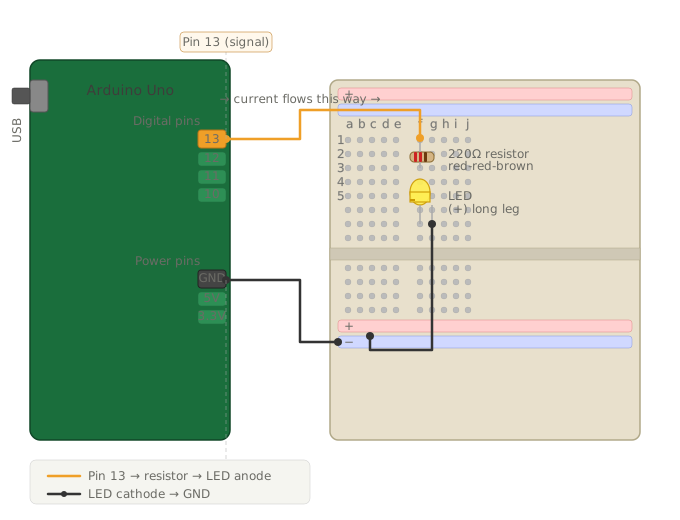
Here’s the wiring:
- Push the LED into the breadboard — two separate rows, one leg per row
- Connect the resistor from the row with the LED’s longer leg to another empty row
- Run a jumper wire from the other end of the resistor to pin 13 on the Arduino
- Run a jumper wire from the row with the LED’s shorter leg to any GND pin on the Arduino
That’s the full circuit. The path is: Arduino pin 13 → resistor → LED anode → LED cathode → GND.
Installing the Arduino IDE
Download the Arduino IDE from arduino.cc/en/software. Install it like any other application.
When you open it, plug in your Arduino via USB. Then:
- Go to Tools → Board and select Arduino Uno
- Go to Tools → Port and select the port that has “Arduino” or “usbmodem” in the name
If you don’t see a port, try a different USB cable — some cheaper cables are charge-only and don’t carry data.
Your First Sketch
In Arduino, code files are called sketches. Every sketch has two functions:
setup()— runs once when the board powers on or resetsloop()— runs over and over, forever, after setup finishes
Here’s the blink sketch:
// Pin 13 is where our LED is connected
int ledPin = 13;

void setup() {
  // Tell the Arduino: pin 13 is an OUTPUT (we're sending signal out)
  pinMode(ledPin, OUTPUT);
}

void loop() {
  digitalWrite(ledPin, HIGH);  // Turn LED on (send 5V)
  delay(1000);                 // Wait 1000 milliseconds (1 second)
  digitalWrite(ledPin, LOW);   // Turn LED off (send 0V)
  delay(1000);                 // Wait 1 second
}
Paste this into the Arduino IDE, then click the Upload button (the arrow icon). The IDE will compile the code and send it to the board.
After a few seconds, your LED should start blinking — on for one second, off for one second, repeating.
Try Changing It
Once it’s working, try modifying the delay() values:
digitalWrite(ledPin, HIGH);
delay(200);   // Much shorter on-time
digitalWrite(ledPin, LOW);
delay(800);   // Longer off-time
Upload again and watch what changes. This is a good habit — tweak something small, see the effect, understand why.
What Just Happened?
The Arduino is running your code. loop() runs continuously, and each time through it turns the LED on, waits, turns it off, waits, and starts over. delay(1000) pauses execution for 1000ms — nothing else happens during that time.
HIGH and LOW mean “5V” and “0V”. When pin 13 is HIGH, current flows through the resistor, through the LED, and back to GND — and the LED lights up.
That’s it. You just wrote and ran embedded code that controls physical hardware. Everything from here builds on this exact same idea.
Up Next
In Part 2, we’ll connect a temperature and humidity sensor (DHT11) and read real values from the physical world — printing them to the Serial Monitor and eventually sending them somewhere useful.